
- Selenium - Home
- Selenium - Overview
- Selenium - Components
- Selenium - Automation Testing
- Selenium - Environment Setup
- Selenium - Remote Control
- Selenium - IDE Introduction
- Selenium - Features
- Selenium - Limitations
- Selenium - Installation
- Selenium - Creating Tests
- Selenium - Creating Script
- Selenium - Control Flow
- Selenium - Store Variables
- Selenium - Alerts & Popups
- Selenium - Selenese Commands
- Selenium - Actions Commands
- Selenium - Accessors Commands
- Selenium - Assertions Commands
- Selenium - Assert/Verify Methods
- Selenium - Locating Strategies
- Selenium - Script Debugging
- Selenium - Verification Points
- Selenium - Pattern Matching
- Selenium - JSON Data File
- Selenium - Browser Execution
- Selenium - User Extensions
- Selenium - Code Export
- Selenium - Emitting Code
- Selenium - JavaScript Functions
- Selenium - Plugins
- Selenium WebDriver Tutorial
- Selenium - Introduction
- Selenium WebDriver vs RC
- Selenium - Installation
- Selenium - First Test Script
- Selenium - Driver Sessions
- Selenium - Browser Options
- Selenium - Chrome Options
- Selenium - Edge Options
- Selenium - Firefox Options
- Selenium - Safari Options
- Selenium - Double Click
- Selenium - Right Click
- HTML Report in Python
- Handling Edit Boxes
- Selenium - Single Elements
- Selenium - Multiple Elements
- Selenium Web Elements
- Selenium - File Upload
- Selenium - Locator Strategies
- Selenium - Relative Locators
- Selenium - Finders
- Selenium - Find All Links
- Selenium - User Interactions
- Selenium - WebElement Commands
- Selenium - Browser Interactions
- Selenium - Browser Commands
- Selenium - Browser Navigation
- Selenium - Alerts & Popups
- Selenium - Handling Forms
- Selenium - Windows and Tabs
- Selenium - Handling Links
- Selenium - Input Boxes
- Selenium - Radio Button
- Selenium - Checkboxes
- Selenium - Dropdown Box
- Selenium - Handling IFrames
- Selenium - Handling Cookies
- Selenium - Date Time Picker
- Selenium - Dynamic Web Tables
- Selenium - Actions Class
- Selenium - Action Class
- Selenium - Keyboard Events
- Selenium - Key Up/Down
- Selenium - Copy and Paste
- Selenium - Handle Special Keys
- Selenium - Mouse Events
- Selenium - Drag and Drop
- Selenium - Pen Events
- Selenium - Scroll Operations
- Selenium - Waiting Strategies
- Selenium - Explicit/Implicit Wait
- Selenium - Support Features
- Selenium - Multi Select
- Selenium - Wait Support
- Selenium - Select Support
- Selenium - Color Support
- Selenium - ThreadGuard
- Selenium - Errors & Logging
- Selenium - Exception Handling
- Selenium - Miscellaneous
- Selenium - Handling Ajax Calls
- Selenium - JSON Data File
- Selenium - CSV Data File
- Selenium - Excel Data File
- Selenium - Cross Browser Testing
- Selenium - Multi Browser Testing
- Selenium - Multi Windows Testing
- Selenium - JavaScript Executor
- Selenium - Headless Execution
- Selenium - Capture Screenshots
- Selenium - Capture Videos
- Selenium - Page Object Model
- Selenium - Page Factory
- Selenium - Record & Playback
- Selenium - Frameworks
- Selenium - Browsing Context
- Selenium - DevTools
- Selenium Grid Tutorial
- Selenium - Overview
- Selenium - Architecture
- Selenium - Components
- Selenium - Configuration
- Selenium - Create Test Script
- Selenium - Test Execution
- Selenium - Endpoints
- Selenium - Customizing a Node
- Selenium Reporting Tools
- Selenium - Reporting Tools
- Selenium - TestNG
- Selenium - JUnit
- Selenium - Allure
- Selenium & Other Technologies
- Selenium - Java Tutorial
- Selenium - Python Tutorial
- Selenium - C# Tutorial
- Selenium - Javascript Tutorial
- Selenium - Kotlin Tutorial
- Selenium - Ruby Tutorial
- Selenium - Maven & Jenkins
- Selenium - LogExpert Logging
- Selenium - Log4j Logging
- Selenium - Robot Framework
- Selenium - Github Tutorial
- Selenium - IntelliJ
- Selenium - XPath
- Selenium Miscellaneous Concepts
- Selenium - IE Driver
- Selenium - Automation Frameworks
- Selenium - Keyword Driven Framework
- Selenium - Data Driven Framework
- Selenium - Hybrid Driven Framework
- Selenium - SSL Certificate Error
- Selenium - Alternatives
- Selenium Useful Resources
- Selenium - Questions & Answers
- Selenium - Quick Guide
- Selenium - Useful Resources
- Selenium - Automation Practice
- Selenium - Discussion
Selenium WebDriver - Safari Options
Selenium Webdriver can be used to run automated tests on the Safari browser. There are certain functionalities and characteristics which are applicable to only Safari for Apple users. Safari is a prominent browser and is provided by default by Apple devices. For Safari browser versions 10 and greater than 10, the safaridriver comes automatically and is not required to be installed separately.
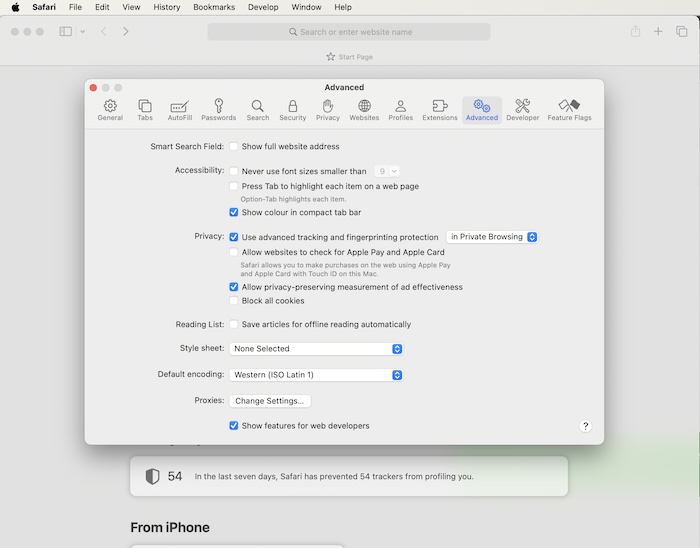
The safari driver is installed on the operating system by default which is not the case for Firefox and Chromium browsers. We would need to do initial setups enable Develop menu in the Safari browser before actually running the tests on it. By default, the Develop menu does not remain visible.
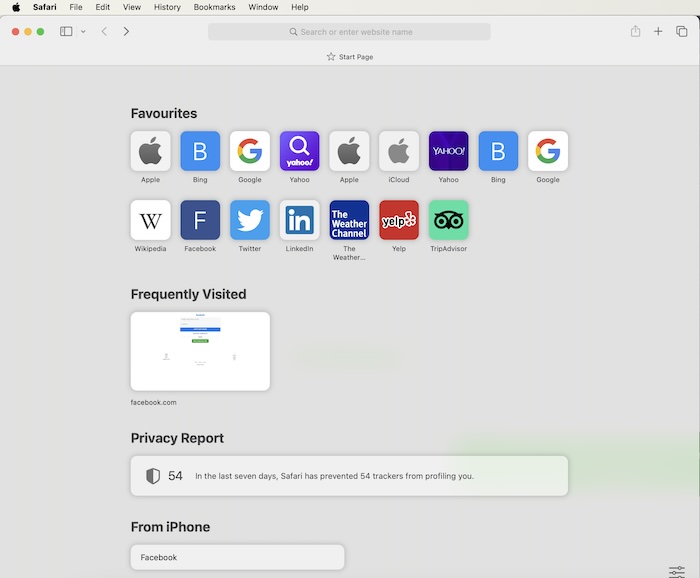
To do so, we have to open Safari, then click on Settings. Next, we would need to move to the Advanced tab, and check the option Show Features for web developers.
To start running automation tests on Safari browser, we would need to run the command from the terminal −
safaridriver --enable
Example
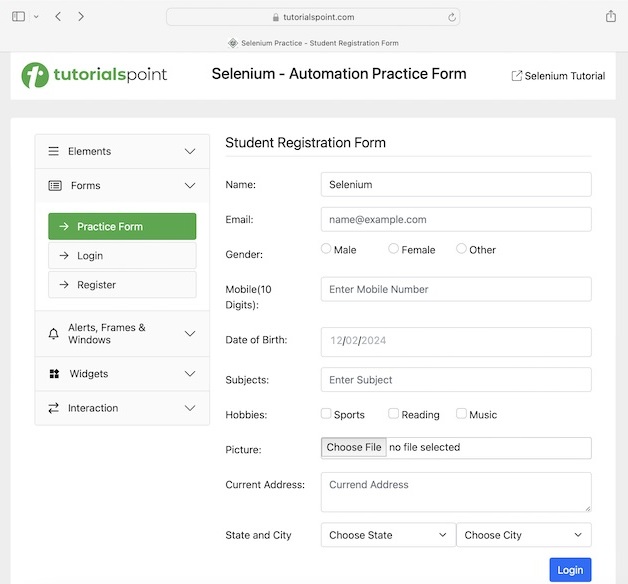
Let us take an example of the page below, where we initiate a Safari driver session along the SafariOptions. Then we would obtain the browser title Selenium Practice - Student Registration Form and current URL Selenium Automation Practice Form.
To use SafariOptions class along with SafariDriver, we would need to add the import statements −
import org.openqa.selenium.safari.SafariOptions
import org.openqa.selenium.safari.SafariDriver
Code Implementation
package org.example;

import org.openqa.selenium.WebDriver;
import org.openqa.selenium.safari.SafariDriver;
import org.openqa.selenium.safari.SafariOptions;
import java.util.concurrent.TimeUnit;

public class SafariOpts {
   public static void main(String[] args) throws InterruptedException {

      // Using the Safari options
      SafariOptions opts = new SafariOptions();
      WebDriver driver = new SafariDriver(opts);

      // adding an implicit wait of 15 secs
      driver.manage().timeouts().implicitlyWait(15, TimeUnit.SECONDS);

      // opening the Safari browser and launch a URL
      driver.get("https://www.tutorialspoint.com/selenium/practice/selenium_automation_practice.php");

      // get the page title
      System.out.println("Browser title is: " + driver.getTitle());

      // get the current URL
      System.out.println("Current URL is: " + driver.getCurrentUrl());

      // closing the browser
      driver.quit();
   }
}
Output
Browser title is: Selenium Practice - Student Registration Form
Current URL is:
https://www.tutorialspoint.com/selenium/practice/selenium_automation_practice.php

Process finished with exit code 0
In the above example, we had launched the Safari browser with SafariOptions then obtained browser title and current URL with the message in the console - Browser title is: Selenium Practice - Student Registration Form and Current URL is: Selenium Automation Practice Form respectively.
Safari browsers would always store the logs(if enabled) in the location - ~/Library/Logs/com.apple.WebDriver/. Unlike other browsers like Chrome, Firefox, and so on, we would not get the option to save the logs and its levels to other locations and values respectively.
Example - Capture Safari Logs
Let us take an example, where we would enable the Safari Logs.
package org.example;

import org.openqa.selenium.WebDriver;
import org.openqa.selenium.safari.SafariDriver;
import org.openqa.selenium.safari.SafariDriverService;
import org.openqa.selenium.safari.SafariOptions;
import java.util.concurrent.TimeUnit;

public class SafariOptsLogs {
   public static void main(String[] args) throws InterruptedException {

      // Using the Safari options
      SafariOptions opts = new SafariOptions();
      WebDriver driver = new SafariDriver(opts);

      // adding an implicit wait of 15 secs
      driver.manage().timeouts().implicitlyWait(15, TimeUnit.SECONDS);

      // opening the Safari browser and launch a URL
      driver.get("https://www.tutorialspoint.com/selenium/practice/selenium_automation_practice.php");

      // enabling the Safari logs
      SafariDriverService service = new SafariDriverService.Builder().withLogging(true).build();

      // get the page title
      System.out.println("Logging enabled: " + service);

      // close the browser
      driver.quit();
   }
}
Output
Logging enabled:
org.openqa.selenium.safari.SafariDriverService@3eeb318f
Example - Disable Safari Logs
Let us take an example, where we would disable the Safari Logs.
package org.example;

import org.openqa.selenium.WebDriver;
import org.openqa.selenium.safari.SafariDriver;
import org.openqa.selenium.safari.SafariDriverService;
import org.openqa.selenium.safari.SafariOptions;
import java.util.concurrent.TimeUnit;

public class SafariOptsLogsFalse {
   public static void main(String[] args) throws InterruptedException {

      // Using the Safari options
      SafariOptions opts = new SafariOptions();
      WebDriver driver = new SafariDriver(opts);

      // adding an implicit wait of 15 secs
      driver.manage().timeouts().implicitlyWait(15, TimeUnit.SECONDS);

      // opening the Safari browser and launch a URL
      driver.get("https://www.tutorialspoint.com/selenium/practice/selenium_automation_practice.php");

      // disabling the Safari Logs
      SafariDriverService service = new SafariDriverService.Builder()
         .withLogging(false)
         .build();

      // get the page title
      System.out.println("Launched Browser title is: " + driver.getTitle());

      // get the current URL
      System.out.println("Current URL is: " + driver.getCurrentUrl());

      // close the browser
      driver.quit();
   }
}
Output
Browser title is: Selenium Practice - Tool Tips
Current URL is:
https://www.tutorialspoint.com/selenium/practice/tool-tips.php
Conclusion
This concludes our comprehensive take on the tutorial on Selenium WebDriver Safari Options. Weve started with describing a SafariOptions class, and walked through examples of how to use the SafariOptions along with Selenium Webdriver. This equips you with in-depth knowledge of the SafariOptions class in Selenium Webdriver. It is wise to keep practicing what youve learned and exploring others relevant to Selenium to deepen your understanding and expand your horizons.