

- Excel - Home
- Excel - Getting Started
- Excel - Explore Window
- Excel - Backstage
- Excel - Entering Values
- Excel - Move Around
- Excel - Save Workbook
- Excel - Create Worksheet
- Excel - Copy Worksheet
- Excel - Hiding Worksheet
- Excel - Delete Worksheet
- Excel - Close Workbook
- Excel - Open Workbook
- Excel - Merge Workbooks
- Excel - File Password
- Excel - File Share
- Excel - Emoji & Symbols
- Excel - Context Help
- Excel - Insert Data
- Excel - Select Data
- Excel - Delete Data
- Excel - Move Data
- Excel - Rows & Columns
- Excel - Copy & Paste
- Excel - Find & Replace
- Excel - Spell Check
- Excel - Zoom In-Out
- Excel - Special Symbols
- Excel - Insert Comments
- Excel - Add Text Box
- Excel - Shapes
- Excel - 3D Models
- Excel - CheckBox
- Excel - Add Sketch
- Excel - Scan Documents
- Excel - Auto Fill
- Excel - SmartArt
- Excel - Insert WordArt
- Excel - Undo Changes
- Formatting Cells
- Excel - Setting Cell Type
- Excel - Move or Copy Cells
- Excel - Add Cells
- Excel - Delete Cells
- Excel - Setting Fonts
- Excel - Text Decoration
- Excel - Rotate Cells
- Excel - Setting Colors
- Excel - Text Alignments
- Excel - Merge & Wrap
- Excel - Borders and Shades
- Excel - Apply Formatting
- Formatting Worksheets
- Excel - Sheet Options
- Excel - Adjust Margins
- Excel - Page Orientation
- Excel - Header and Footer
- Excel - Insert Page Breaks
- Excel - Set Background
- Excel - Freeze Panes
- Excel - Conditional Format
- Excel - Highlight Cell Rules
- Excel - Top/Bottom Rules
- Excel - Data Bars
- Excel - Color Scales
- Excel - Icon Sets
- Excel - Clear Rules
- Excel - Manage Rules
- Working with Formula
- Excel - Formulas
- Excel - Creating Formulas
- Excel - Copying Formulas
- Excel - Formula Reference
- Excel - Relative References
- Excel - Absolute References
- Excel - Arithmetic Operators
- Excel - Parentheses
- Excel - Using Functions
- Excel - Builtin Functions
- Excel Formatting
- Excel - Formatting
- Excel - Format Painter
- Excel - Format Fonts
- Excel - Format Borders
- Excel - Format Numbers
- Excel - Format Grids
- Excel - Format Settings
- Advanced Operations
- Excel - Data Filtering
- Excel - Data Sorting
- Excel - Using Ranges
- Excel - Data Validation
- Excel - Using Styles
- Excel - Using Themes
- Excel - Using Templates
- Excel - Using Macros
- Excel - Adding Graphics
- Excel - Cross Referencing
- Excel - Printing Worksheets
- Excel - Email Workbooks
- Excel- Translate Worksheet
- Excel - Workbook Security
- Excel - Data Tables
- Excel - Pivot Tables
- Excel - Simple Charts
- Excel - Pivot Charts
- Excel - Sparklines
- Excel - Ads-ins
- Excel - Protection and Security
- Excel - Formula Auditing
- Excel - Remove Duplicates
- Excel - Services
- Excel Useful Resources
- Excel - Keyboard Shortcuts
- Excel - Quick Guide
- Excel - Functions
- Excel - Useful Resources
- Excel - Discussion
Excel - Insert Page Break
Insert Page Break
If you dont want a row to print on a page by itself or you don't want a table header row to be the last line on a page. MS Excel gives you precise control over page breaks.
MS Excel handles page breaks automatically, but sometimes you may want to force a page break either a vertical or a horizontal one. so that the report prints the way you want.
For example, if your worksheet consists of several distinct sections, you may want to print each section on a separate sheet of paper.
Insert Horizontal Page Break
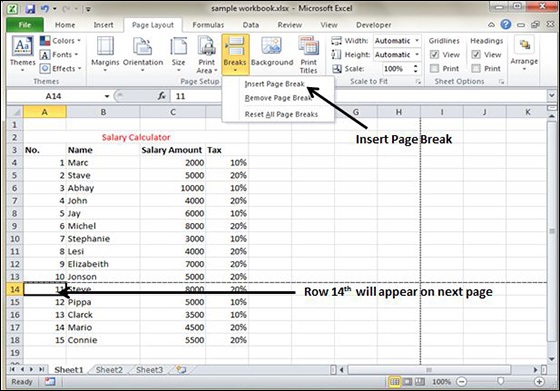
For example, if you want row 14 to be the first row of a new page, select cell A14. Then choose Page Layout » Page Setup Group » Breaks » Insert Page Break.
Insert Vertical Page Break
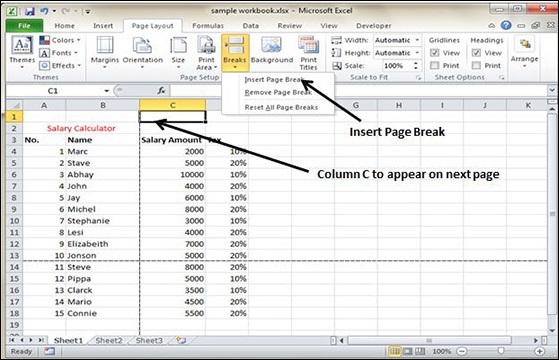
In this case, make sure to place the pointer in row 1. Choose Page Layout » Page Setup » Breaks » Insert Page Break to create the page break.
Remove Horizontal Page Breaks
Microsoft Excel allows you to insert the Page breaks horizontally or vertically wherever you want. Excel's page break feature permits you to add, remove, and reset all the page breaks for the worksheets. For example, multiple statistical charts are created on the same worksheet. If you give the print command, the inappropriate statistical charts will display on the same A4-size sheet. To overcome this issue, you can set the page breaks so that each chart comes on a different page.
Step 1 − To remove the page breaks in Excel, consider the sample dataset. Place the cursor on the A9 cell beneath the horizontal page break.

Step 2 − Move to the "Page Layout" tab, expand the "Breaks" option, and select "Remove Page Break" from the drop-down menu. Therefore, the horizontal page break is removed in the Excel worksheet.

Remove Vertical Page Breaks
Step 1 − The vertical page breaks are placed between the B and C columns in the sample dataset. Locate the cursor on the C1 cell.

Step 2 − Follow these steps “Page Layout-> Breaks->Remove Page Break”.

Therefore, the vertical page break is removed between the B and C columns as shown below −

Remove Multiple Page Breaks
Assume the sample datasets where multiple page breaks are inserted. The task is to remove all the page breaks in Excel.

Navigate to the "Page Layout" tab, expand the "Breaks" tile, and select the "Reset All Page Breaks" option from the drop-down menu.

After that, all the page breaks will be removed from the worksheet.
