
Article Categories
- All Categories
-
 Data Structure
-
 Networking
-
 RDBMS
RDBMS
-
 Operating System
-
 Java
Java
-
 MS Excel
-
 iOS
iOS
-
 HTML
HTML
-
 CSS
CSS
-
 Android
-
 Python
-
 C Programming
-
 C++
C++
-
 C#
C#
-
 MongoDB
-
 MySQL
MySQL
-
 Javascript
-
 PHP
PHP
-
 Economics & Finance
Selected Reading
How to set the content of the label to be right-justified and top-aligned in Java?
To set the text of the label component to be right-justified and top-aligned, you need to set the alignment. Set the label to be on the right and top aligned −
JLabel label = new JLabel("Fav Sports", JLabel.RIGHT);
label.setVerticalAlignment(JLabel.TOP);
Here, we have set the size of the label as well as the color that includes foreground and background color −
label.setPreferredSize(new Dimension(220, 70));
label.setOpaque(true);
label.setBackground(Color.YELLOW);
label.setForeground(Color.RED);
The following is an example to set the content of the lable to be right-justified and top-aligned −
package my;
import java.awt.Color;
import java.awt.Dimension;
import java.awt.FlowLayout;
import java.awt.Font;
import javax.swing.JFrame;
import javax.swing.JLabel;
import javax.swing.JTextArea;
import javax.swing.WindowConstants;
public class SwingDemo {
   public static void main(String[] args) {
      JFrame frame = new JFrame("Frame");
      frame.setLayout(new FlowLayout());
      JLabel label = new JLabel("Fav Sports", JLabel.RIGHT);
      label.setPreferredSize(new Dimension(220, 70));
      label.setOpaque(true);
      label.setVerticalAlignment(JLabel.TOP);
      label.setBackground(Color.YELLOW);
      label.setForeground(Color.RED);
      Font font = new Font("Serif", Font.BOLD, 18);
      label.setFont(font);
      JTextArea text = new JTextArea();
      text.setText("Football");
      font = new Font("Serif", Font.BOLD, 14);
      text.setFont(font);
      frame.add(label);
      frame.add(text);
      frame.setDefaultCloseOperation(WindowConstants.EXIT_ON_CLOSE);
      frame.setSize(500, 300);
      frame.setVisible(true);
   }
}
Output
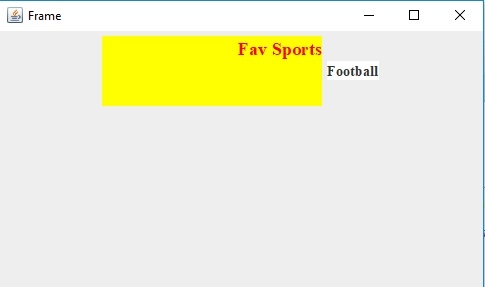

Updated on: 2019-07-30T22:30:26+05:30
189 Views

Advertisements