
Article Categories
- All Categories
-
 Data Structure
-
 Networking
-
 RDBMS
RDBMS
-
 Operating System
-
 Java
Java
-
 MS Excel
-
 iOS
iOS
-
 HTML
HTML
-
 CSS
CSS
-
 Android
-
 Python
-
 C Programming
-
 C++
C++
-
 C#
C#
-
 MongoDB
-
 MySQL
MySQL
-
 Javascript
-
 PHP
PHP
-
 Economics & Finance
How to Rename Multiple Files of a Folder in Excel?
Have you ever had a circumstance arise when you wanted to swiftly and effectively rename several files in a folder? When dealing with a large number of files, manually renaming each one can be time-consuming and error-prone. Fortunately, there is a quick fix that makes use of Microsoft Excel's capabilities.
In this tutorial, we'll walk you through each step of how to use Excel to rename numerous files in a folder. By the end of this article, you'll be armed with a simple and efficient approach to quickly rename your files.
Rename Multiple Files of a Folder
Here we will first create a VBA module, then select the folder to complete the task. So let us see a simple process to learn how you can rename multiple files in a folder in Excel.
Step 1
Consider an Excel sheet where you have a list of new names and old names, similar to the below image.

First, right-click on the sheet name and select View Code to open the VBA application.
Step 2
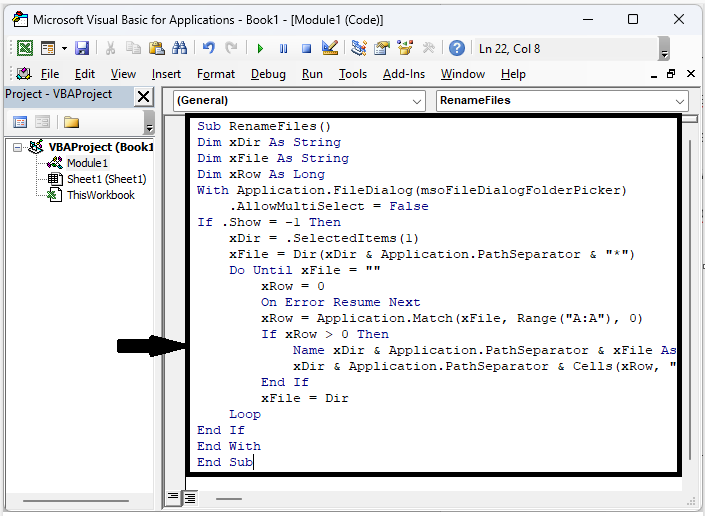
Then click on Insert and select Module, then copy the below code into the text box.
Insert > Module > Copy.
Code
Sub RenameFiles()
Dim xDir As String
Dim xFile As String
Dim xRow As Long
With Application.FileDialog(msoFileDialogFolderPicker)
   .AllowMultiSelect = False
If .Show = -1 Then
   xDir = .SelectedItems(1)
   xFile = Dir(xDir & Application.PathSeparator & "*")
   Do Until xFile = ""
      xRow = 0
      On Error Resume Next
      xRow = Application.Match(xFile, Range("A:A"), 0)
      If xRow > 0 Then
         Name xDir & Application.PathSeparator & xFile As _
         xDir & Application.PathSeparator & Cells(xRow, "B").Value
      End If
      xFile = Dir
   Loop
End If
End With
End Sub
In the code A:A indicates old names, and column B represents new names.
Step 3
Then click F5 to run the module. Then select the folder containing the files and click OK to complete the task.
F5 > Select Folder > Ok.

This is how you can rename multiple files in a folder in Excel.
Conclusion
In this tutorial, we have used a simple example to demonstrate how you can rename multiple files in a folder in Excel to highlight a particular set of data.

2K+ Views
