
Article Categories
- All Categories
-
 Data Structure
-
 Networking
-
 RDBMS
RDBMS
-
 Operating System
-
 Java
Java
-
 MS Excel
-
 iOS
iOS
-
 HTML
HTML
-
 CSS
CSS
-
 Android
-
 Python
-
 C Programming
-
 C++
C++
-
 C#
C#
-
 MongoDB
-
 MySQL
MySQL
-
 Javascript
-
 PHP
PHP
How to Have a Floating Command Button on a Worksheet in Excel?
Let us assume we have an Active X command on an Excel sheet at one place, and the data in the Excel sheet is in large volumes. If you want to use the active x command, we need to search for it every time. This problem can be solved by making the button floating. This article will help you understand how we can make the button always float in Excel.
Floating a Command Button on a Worksheet
Here we will first insert a button and then assign a macro to the button to make it always floating. Let us see a simple process for always floating a command button on a worksheet. We can find the Active X commands under the developer option in Excel.
Step 1
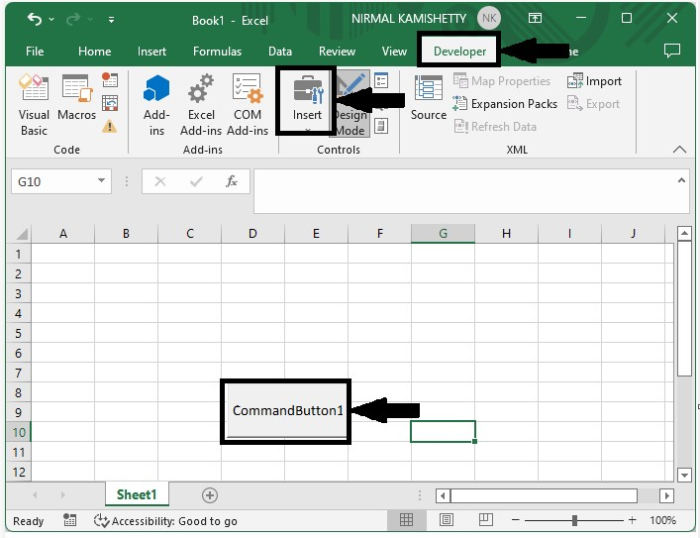
Let us consider an Excel sheet where an active X command button is present, as shown in the below image. To insert an active X command, click on developer, click on insert, and select any command.
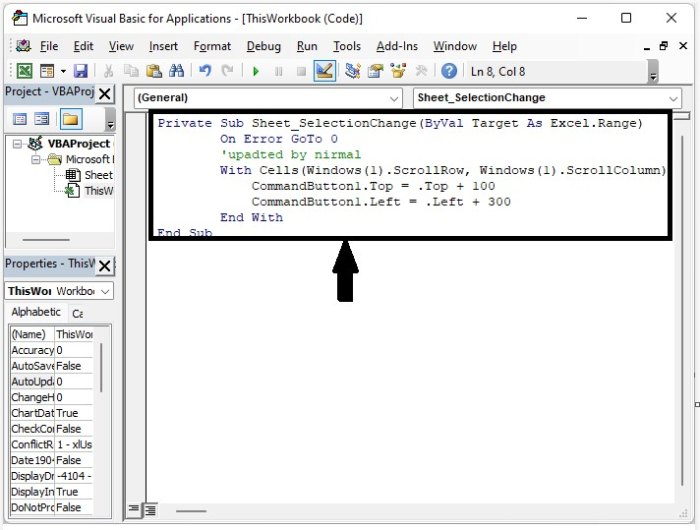
Now right-click on the sheet name and select "View Code." Double-click on this workbook in the VBA code pop-up, then type the programme in the text box as shown in the image below.
Example
Private Sub Worksheet_SelectionChange(ByVal Target As Excel.Range)
   On Error GoTo 0
   With Cells(Windows(1).ScrollRow, Windows(1).ScrollColumn)
   'updated by nirmal
      CommandButton1.Top = .Top + 100
      CommandButton1.Left = .Left + 300
   End With
End Sub
Step 2
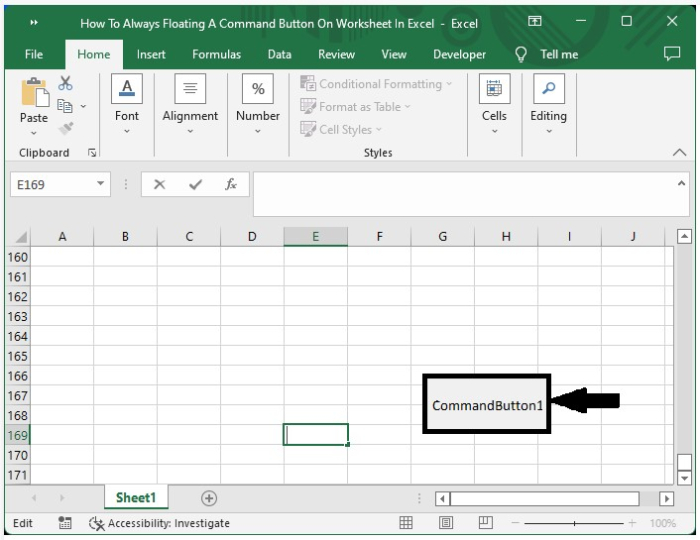
Now close the VBA code, save the file as a macro-enabled sheet, and close the workbook. The next time we open the sheet, click on the enable code to successfully complete our process, as shown in the below image.
Conclusion
In this tutorial, we used a simple example to demonstrate how you can always float a command button on a worksheet in Excel to highlight a particular set of data. The VBA code used in the sheet will only work for the ActiveX commands in Excel.

4K+ Views
