
Article Categories
- All Categories
-
 Data Structure
-
 Networking
-
 RDBMS
RDBMS
-
 Operating System
-
 Java
Java
-
 MS Excel
-
 iOS
iOS
-
 HTML
HTML
-
 CSS
CSS
-
 Android
-
 Python
-
 C Programming
-
 C++
C++
-
 C#
C#
-
 MongoDB
-
 MySQL
MySQL
-
 Javascript
-
 PHP
PHP
-
 Economics & Finance
How To Double Click A Cell And Add 1 To That Cell Value In Excel?
Excel is a powerful spreadsheet programme that allows you to easily store, organise, and analyse data. Updating the value of a cell is a fundamental operation in Excel. You can easily edit the contents of a cell by double?clicking it. This article will concentrate on one specific scenario: increasing the value of a cell by one when you double?click it. This can be useful in a variety of circumstances, such as keeping track of counts or creating a simple counter. Whether you're new to Excel or trying to improve your skills, let's dig in and learn how to easily add 1 to the value of a cell with a double?click!
Double Click A Cell And Add 1 To That Cell Value
Here we will first insert the VBA code into the sheet to complete the task. So let us see a simple process to know how you can double?click a cell and add 1 to that cell's value in Excel.
Step 1
Consider any Excel sheet where you list numbers similar to the below image.
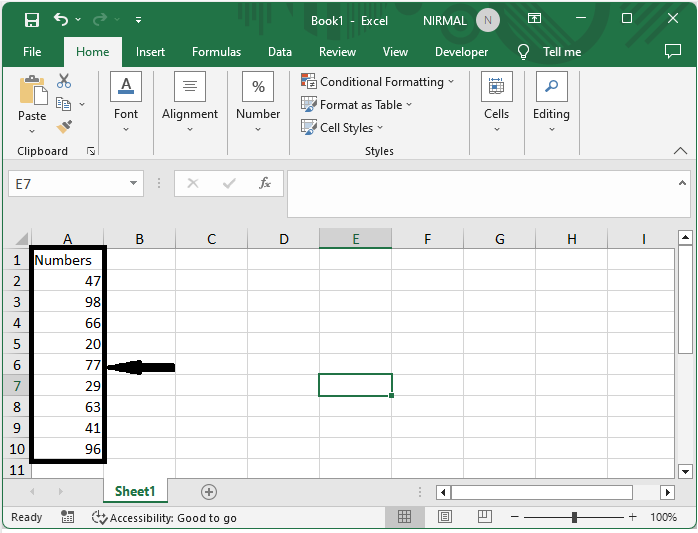
First, right?click on the sheet name and select "View Code" to open the VBA application.
Step 2
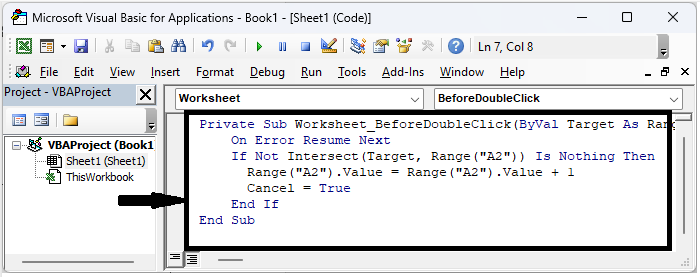
Then copy the below code into the text box.
Code
Private Sub Worksheet_BeforeDoubleClick(ByVal Target As Range, Cancel As Boolean)
   On Error Resume Next
   If Not Intersect(Target, Range("A2")) Is Nothing Then
      Range("A2").Value = Range("A2").Value + 1
      Cancel = True
   End If
End Sub
In the code A2 is the cell where we add one on double click.
Step 3
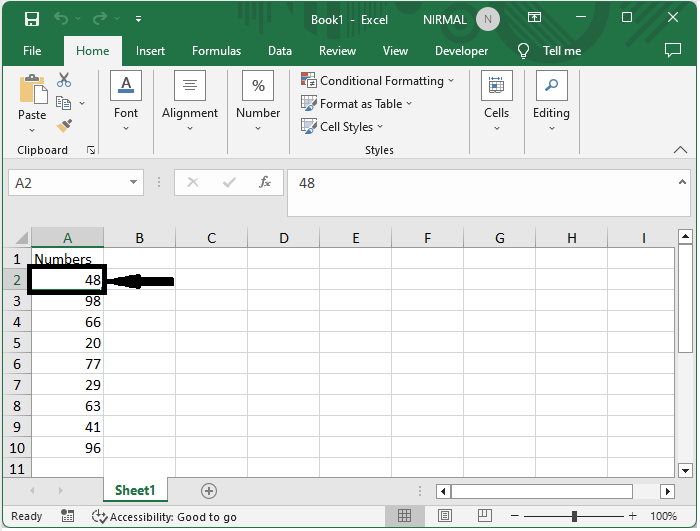
Then close the VBA using Alt + Q. Then double?click on cell A2 to complete the task.
Conclusion
In this tutorial, we have used a simple process to show how you can double?click a cell and add 1 to that cell's value in Excel to highlight a particular set of data.

930 Views
