
Article Categories
- All Categories
-
 Data Structure
-
 Networking
-
 RDBMS
RDBMS
-
 Operating System
-
 Java
Java
-
 MS Excel
-
 iOS
iOS
-
 HTML
HTML
-
 CSS
CSS
-
 Android
-
 Python
-
 C Programming
-
 C++
C++
-
 C#
C#
-
 MongoDB
-
 MySQL
MySQL
-
 Javascript
-
 PHP
PHP
-
 Economics & Finance
How To Display Text Labels In The X-axis Of Scatter Chart In Excel?
A strong visualisation method for showing the relationship between two variables is a scatter chart. Excel plots numerical values on the X and Y axes by default. The X?axis can occasionally be labelled with text rather of numbers, though.
In this article, we'll look at a step?by?step method for carrying out this task in Excel. The capability to display text labels on the X?axis can result in a clearer and more useful visualisation, regardless of whether you want to build a scatter chart for business, study, or personal use. We'll assume you have a fundamental understanding of Excel and its features throughout this course. Let's get started and discover how to display text labels in the X?axis of a scatter chart in Excel now, shall we?
Display Text Labels In The X?axis Of Scatter Chart
Here we will format the chart to complete the task. So let us see a simple process to know how you can display text labels on the X?axis of a scatter chart in Excel.
Step 1
Consider an Excel sheet where you have a scatter chart similar to the below image.
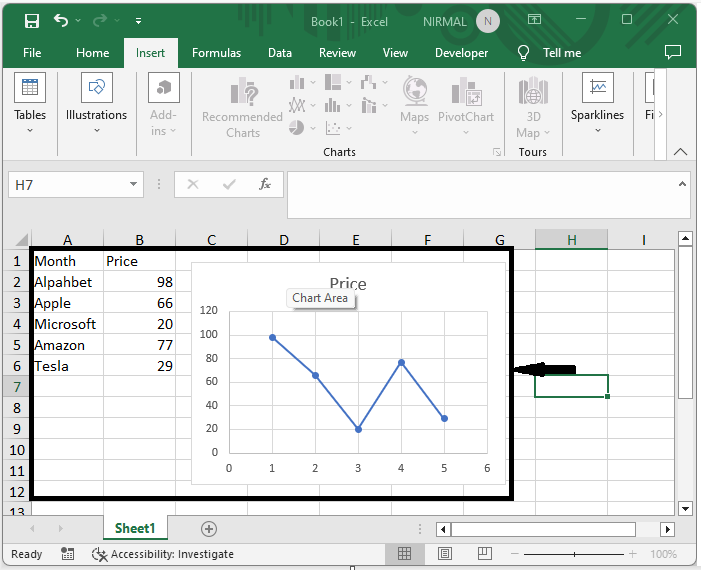
First, right?click on the chart line and select Format Data Series.
Right click > Format data series.
Step 2
Then click on fill, select no fill, and close the format menu to complete the task.
Fill > No fill > Close.
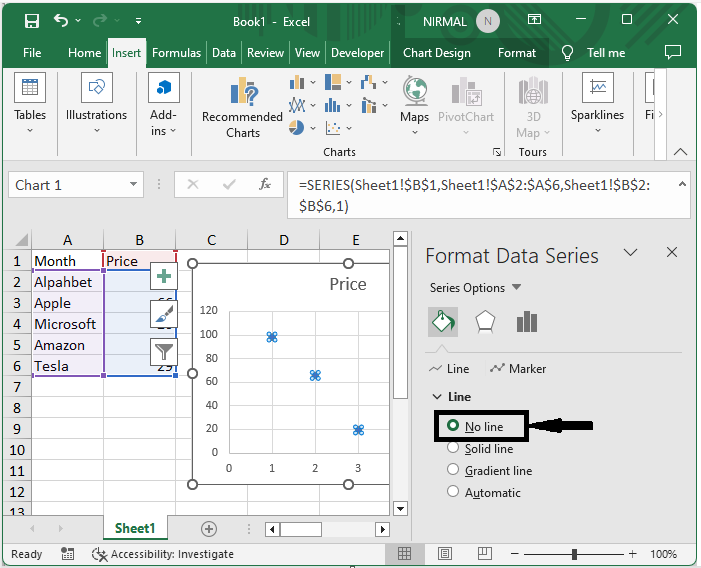
Then you can see that the text labels are on the x axis of the scatter chart.

This is how you can display text labels on the x axis of a scatter chart in Excel.
Conclusion
In this tutorial, we have used a simple example to demonstrate how you can display text labels on the X?axis of a scatter chart in Excel to highlight a particular set of data.

1K+ Views
