
Article Categories
- All Categories
-
 Data Structure
-
 Networking
-
 RDBMS
RDBMS
-
 Operating System
-
 Java
Java
-
 MS Excel
-
 iOS
iOS
-
 HTML
HTML
-
 CSS
CSS
-
 Android
-
 Python
-
 C Programming
-
 C++
C++
-
 C#
C#
-
 MongoDB
-
 MySQL
MySQL
-
 Javascript
-
 PHP
PHP
-
 Economics & Finance
How to Convert Vertical List to Horizontal or Vice Versa in Excel?
Have you ever tried to convert a vertical list to a horizontal list, or vice versa, in Excel? Manually doing this can be time-consuming because we must type data into each cell and each new cell. We can complete this task in a faster and simpler way by using the paste special function.
Read this tutorial to learn how you can convert a vertical list to a horizontal list in Excel and vice versa. The lists that are represented in vertical and horizontal ways are known as "vertical lists" and "horizontal lists," respectively.
Converting a Vertical List to Horizontal in Excel
Here, we'll copy the list and then paste it using the paste special function, which includes a transpose. Let's go over a simple procedure for converting a vertical list to a horizontal list in Excel using the paste special.
Step 1
Consider an excel sheet with data in the form of a vertical list, similar to an image.
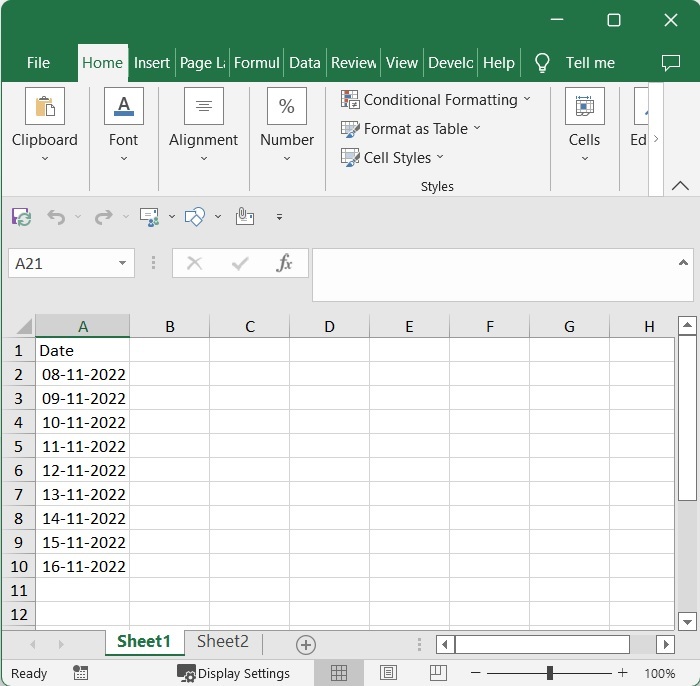
Now, select the range of cells you want to convert to horizontal format and copy the data with CTRL + C.
Select data > CTRL + C
Step 2
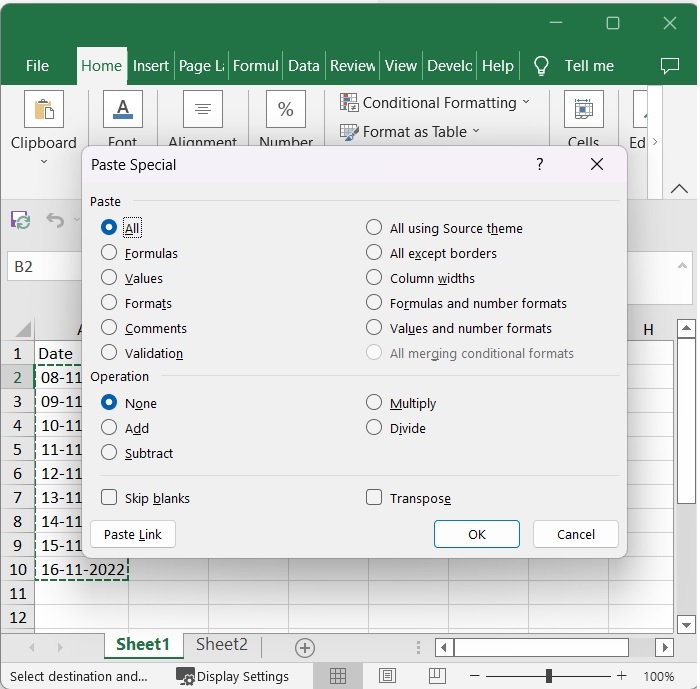
Then click on an empty cell where you want to put your horizontal list and right-click, then click on "Paste special" and again click on "Paste special" as shown in the below image to open a pop-up window.
Empty cell > Right click > Paste special > Paste special
Step 3
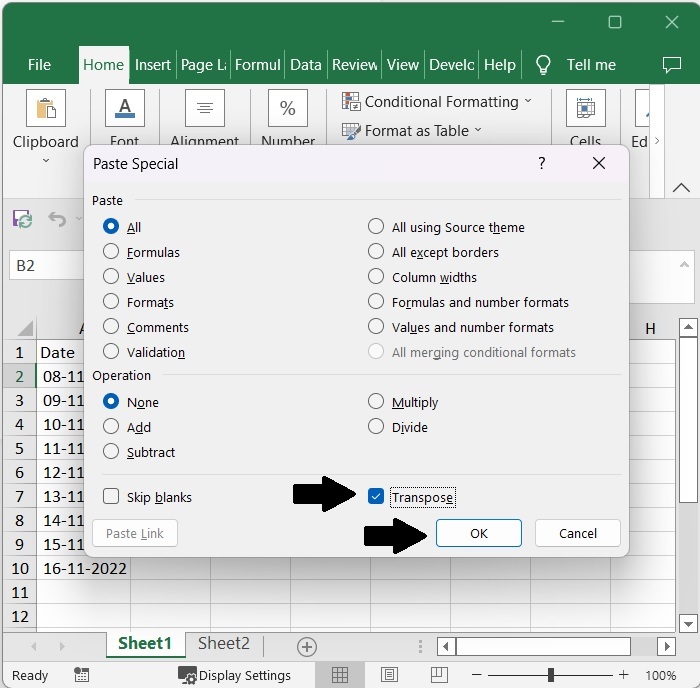
Then, in the pop-up window, check the "Transpose" check box and click OK, as shown in the image below.
The vertical list will then be successfully converted to a horizontal list, as shown in the image below.
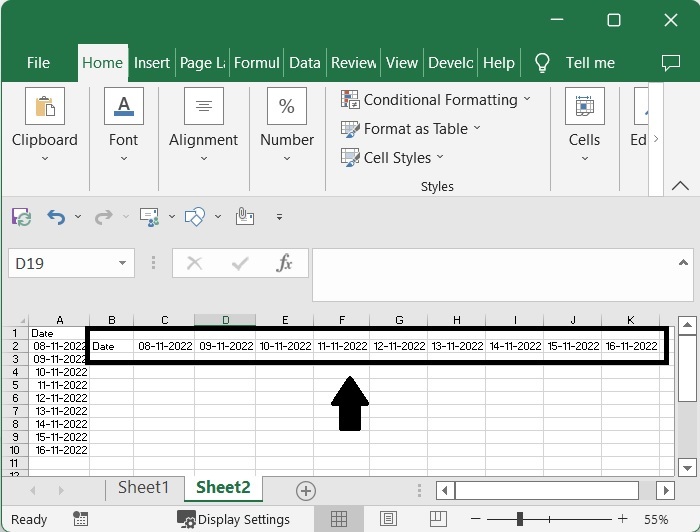
If we need to convert the horizontal list to a vertical list, we can use the exact same process without any change.
Conclusion
In this tutorial, we used a simple example to demonstrate how you can convert a vertical list to a horizontal list or vice versa in Excel.

1K+ Views
