
Article Categories
- All Categories
-
 Data Structure
-
 Networking
-
 RDBMS
RDBMS
-
 Operating System
-
 Java
Java
-
 MS Excel
-
 iOS
iOS
-
 HTML
HTML
-
 CSS
CSS
-
 Android
-
 Python
-
 C Programming
-
 C++
C++
-
 C#
C#
-
 MongoDB
-
 MySQL
MySQL
-
 Javascript
-
 PHP
PHP
-
 Economics & Finance
How to Automatically Resize the Textbox to Fit the Contents in Excel?
When we use the text boxes in Excel, you may have observed that manually resizing the text boxes to fit the content is one of the most time-consuming processes, as adjusting them could be a slower process. This can waste a significant amount of time when doing the Excel work. This tutorial will help you understand how we can automatically resize the text box to fit the content in Excel. We can do it with the help of a VBA application, as it cannot be done by default in Excel.
Automatically Resize a Textbox to Fit the Content in Excel
Here, we will first insert a VBA module and then run it to complete our task. Let us see an effortless process to know how we can automatically resize the text box to fit content in Excel.
Step 1
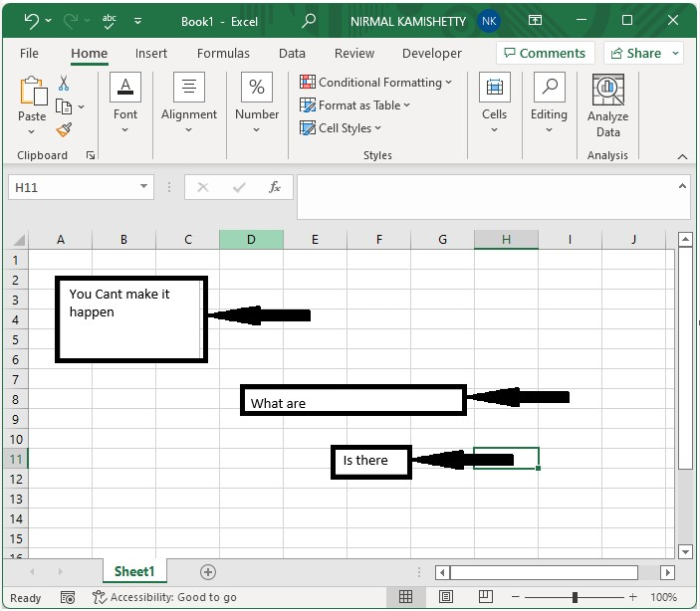
Let us consider an excel sheet where it contains text boxes, as shown in the below excel sheet as an image. We can insert a text box by clicking on text under "Insert" and drawing the box's size.
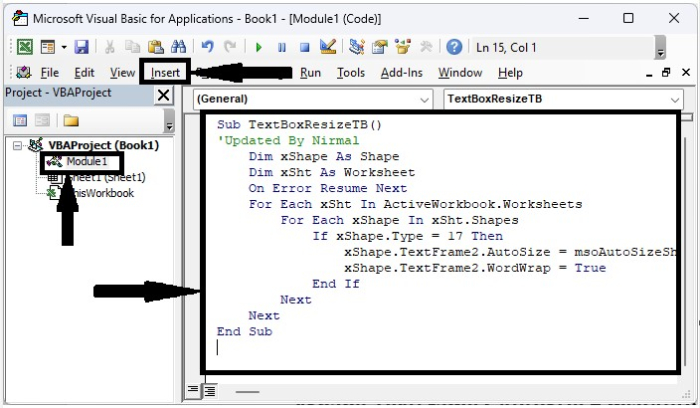
Now right-click on the sheet name and select view code to open the vba application, then click on Insert and select the module, then enter the programme into the text box as shown in the below image.
Example
<div class="code-mirror  language-javascript" contenteditable="plaintext-only" spellcheck="false" style="outline: none; overflow-wrap: break-word; overflow-y: auto; white-space: pre-wrap;">Sub <span class="token function">TextBoxResizeTB</span><span class="token punctuation">(</span><span class="token punctuation">)</span>
'Updated By Nirmal
   Dim xShape As Shape
   Dim xSht As Worksheet
   On Error Resume Next
   For Each xSht In ActiveWorkbook<span class="token punctuation">.</span>Worksheets
      For Each xShape In xSht<span class="token punctuation">.</span>Shapes
         If xShape<span class="token punctuation">.</span>Type <span class="token operator">=</span> <span class="token number">17</span> Then
            xShape<span class="token punctuation">.</span>TextFrame2<span class="token punctuation">.</span>AutoSize <span class="token operator">=</span> msoAutoSizeShapeToFitText
            xShape<span class="token punctuation">.</span>TextFrame2<span class="token punctuation">.</span>WordWrap <span class="token operator">=</span> True
         End If
      Next
   Next
End Sub
</div>
The code will only work for increasing the text size it won?t reduce the text size.
Step 2
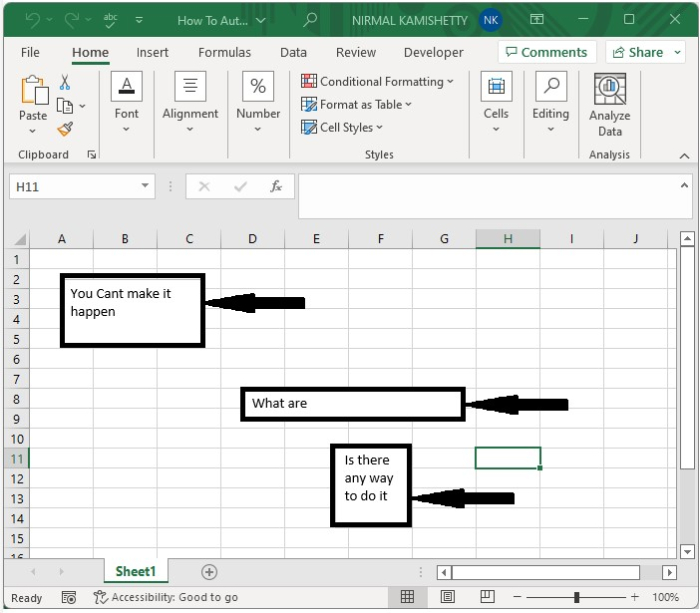
Now save the sheet as a macro-enabled workbook, and then click on F5 to run the module and auto-resize the text boxes as shown in the below image.
Conclusion
In this tutorial, we used a simple example to demonstrate how we can automatically resize a textbox to fit its contents in Excel.

567 Views
