
Article Categories
- All Categories
-
 Data Structure
-
 Networking
-
 RDBMS
RDBMS
-
 Operating System
-
 Java
Java
-
 MS Excel
-
 iOS
iOS
-
 HTML
HTML
-
 CSS
CSS
-
 Android
-
 Python
-
 C Programming
-
 C++
C++
-
 C#
C#
-
 MongoDB
-
 MySQL
MySQL
-
 Javascript
-
 PHP
PHP
-
 Economics & Finance
How to Auto-Size a Comment Box to Fit Its Content in Excel?
Have you ever wondered if there is any way in Excel to automatically size the comment box to fit its contents? This is only possible using the VBA application. Using VBA code, we can customise the sheet to automatically fit the size of the comment box to its contents in Excel. This tutorial will help you understand how we can automatically size comment boxes to fit their content in Excel.
Auto-Size a Comment Box to Fit Its Content in Excel
Here, we will first create a VBA module and then run it to complete our task. Let us see a simple process to understand how we can auto-size the comment box to fit its contents using the VBA application.
Step 1
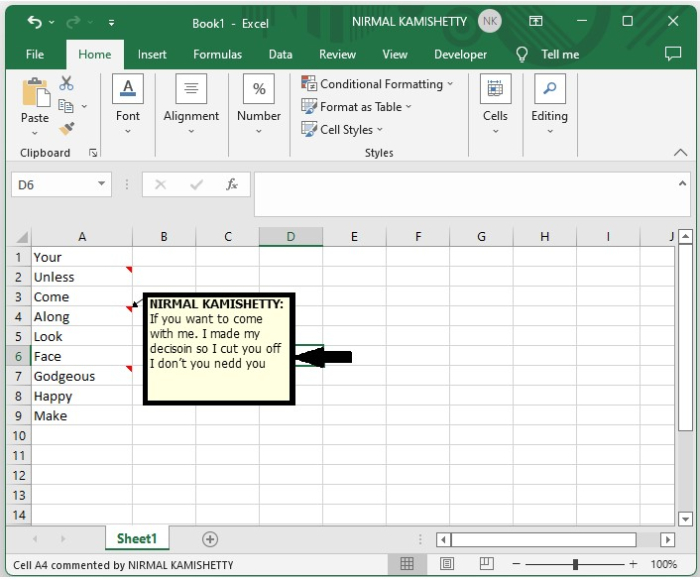
Consider an Excel sheet with at least one comment present throughout the sheet, as shown in the image.
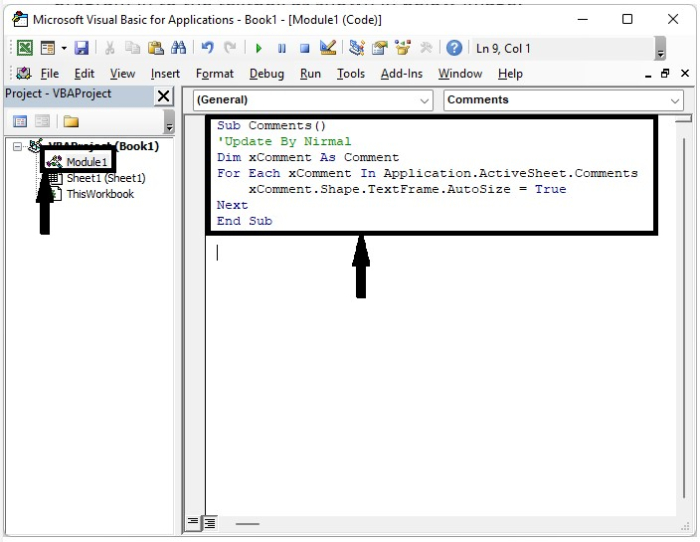
Now to open the VBA application, click on "Insert," select "Module," and enter the programme into the textbox as shown in the below image.
Example 1
<div class="code-mirror  language-javascript" contenteditable="plaintext-only" spellcheck="false" style="outline: none; overflow-wrap: break-word; overflow-y: auto; white-space: pre-wrap;">Sub <span class="token function">Comments</span><span class="token punctuation">(</span><span class="token punctuation">)</span>
'Update By Nirmal
Dim xComment As Comment
For Each xComment In Application<span class="token punctuation">.</span>ActiveSheet<span class="token punctuation">.</span>Comments
   xComment<span class="token punctuation">.</span>Shape<span class="token punctuation">.</span>TextFrame<span class="token punctuation">.</span>AutoSize <span class="token operator">=</span> True
Next
End Sub
</div>
Step 2
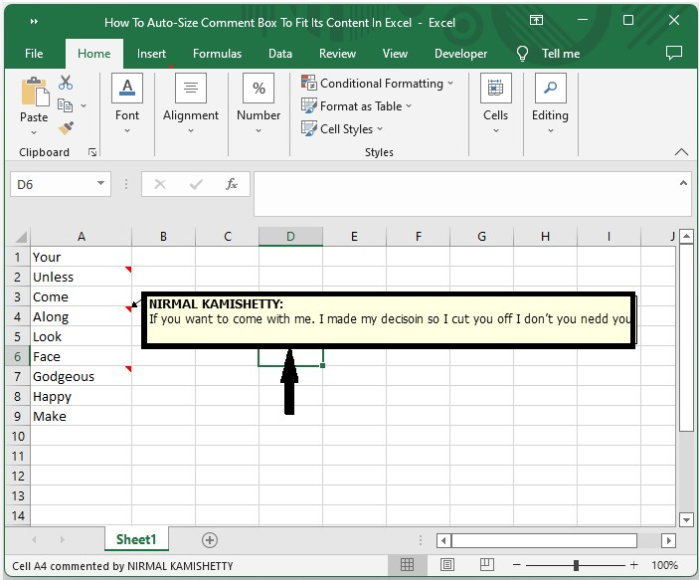
Now save the document as a macro-enabled sheet and click on F5 to run the code, and the comments will be adjusted as shown in the below image.
If you only want to auto-size the comments in a range of cells, then we can use Program 2 in the VBA application.
Example 2
<div class="code-mirror  language-javascript" contenteditable="plaintext-only" spellcheck="false" style="outline: none; overflow-wrap: break-word; overflow-y: auto; white-space: pre-wrap;">Sub <span class="token function">Fitrangecomments</span><span class="token punctuation">(</span><span class="token punctuation">)</span>
'Update By Nirmal
Dim rng As Range
Dim WorkRng As Range
xTitleId <span class="token operator">=</span> <span class="token string">"Select the range"</span>
Set WorkRng <span class="token operator">=</span> Application<span class="token punctuation">.</span>Selection
Set WorkRng <span class="token operator">=</span> Application<span class="token punctuation">.</span><span class="token function">InputBox</span><span class="token punctuation">(</span><span class="token string">"Range"</span><span class="token punctuation">,</span> xTitleId<span class="token punctuation">,</span> WorkRng<span class="token punctuation">.</span>Address<span class="token punctuation">,</span> Type<span class="token operator">:</span><span class="token operator">=</span><span class="token number">8</span><span class="token punctuation">)</span>
For Each rng In WorkRng
   If Not rng<span class="token punctuation">.</span>Comment Is Nothing Then
      rng<span class="token punctuation">.</span>Comment<span class="token punctuation">.</span>Shape<span class="token punctuation">.</span>TextFrame<span class="token punctuation">.</span>AutoSize <span class="token operator">=</span> True
   End If
Next
End Sub
</div>
Note ? The above codes will only work for the existing comment boxes; they will not work for newly added comment boxes.
Conclusion
In this tutorial, we used a simple example to demonstrate how you can auto-size a comment box to fit its contents in Excel.

2K+ Views
