
Article Categories
- All Categories
-
 Data Structure
-
 Networking
-
 RDBMS
RDBMS
-
 Operating System
-
 Java
Java
-
 MS Excel
-
 iOS
iOS
-
 HTML
HTML
-
 CSS
CSS
-
 Android
-
 Python
-
 C Programming
-
 C++
C++
-
 C#
C#
-
 MongoDB
-
 MySQL
MySQL
-
 Javascript
-
 PHP
PHP
-
 Economics & Finance
How to Auto-Select the Text of a Textbox When It is Selected in Excel?
When we are dealing with text boxes, it is very important to update and delete the data inside them, but if it contains a large amount of data, we need to select the data inside the text box and delete it. In this tutorial, I will explain the process for selecting the data in a text box by clicking on it. This tutorial will help you understand how you can autoselect text from a textbox when it is selected in Excel.
Auto-Select the Text of a Textbox When It is Selected
Here, we will first create a macro and then assign it to the text box. Let us see a simple process to know how we can auto-select text from a textbox when it is selected in Excel using the VBA application. We will be using an ActiveX command textbox under the developer option.
Step 1
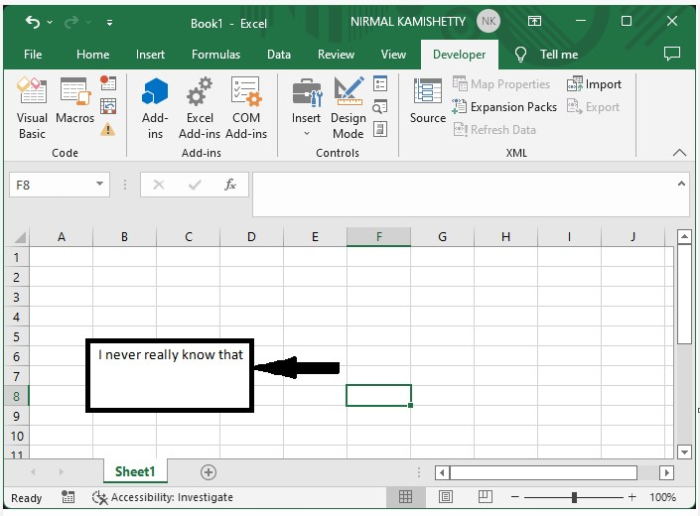
Let us consider an Excel sheet where an active "X" command text box is present, similar to the sheet shown in the below image.
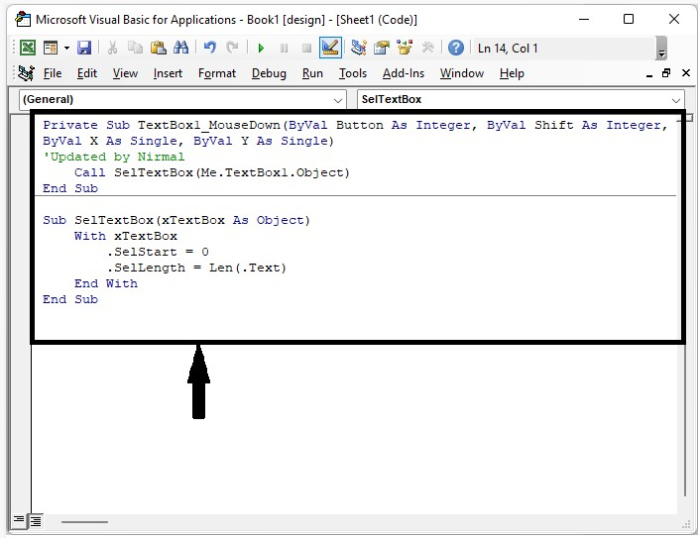
To open the VBA application, right-click on the text box and select View Code, then type the programme into the text box as shown in the image below.
Example
<div class="code-mirror  language-javascript" contenteditable="plaintext-only" spellcheck="false" style="outline: none; overflow-wrap: break-word; overflow-y: auto; white-space: pre-wrap;">Private Sub <span class="token function">TextBox1_MouseDown</span><span class="token punctuation">(</span>ByVal Button As Integer<span class="token punctuation">,</span> ByVal Shift As Integer<span class="token punctuation">,</span> _
ByVal <span class="token constant">X</span> As Single<span class="token punctuation">,</span> ByVal <span class="token constant">Y</span> As Single<span class="token punctuation">)</span>
'Updated by Nirmal
   Call <span class="token function">SelTextBox</span><span class="token punctuation">(</span>Me<span class="token punctuation">.</span>TextBox1<span class="token punctuation">.</span>Object<span class="token punctuation">)</span>
End Sub

Sub <span class="token function">SelTextBox</span><span class="token punctuation">(</span>xTextBox As Object<span class="token punctuation">)</span>
   With xTextBox
      <span class="token punctuation">.</span>SelStart <span class="token operator">=</span> <span class="token number">0</span>
      <span class="token punctuation">.</span>SelLength <span class="token operator">=</span> <span class="token function">Len</span><span class="token punctuation">(</span><span class="token punctuation">.</span>Text<span class="token punctuation">)</span>
   End With
End Sub
</div>
Step 2
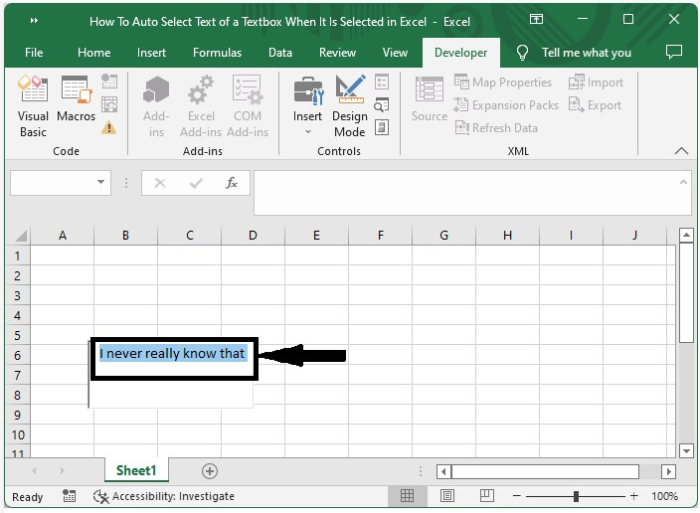
Now save the sheet as a macro-enabled sheet and close the vba application using the command "Alt + Q", which then exits the designer mode, and every time we click on the textbox, all the data in it will be selected as shown in the below image.
If you have multiple textboxes, then you can add the following code to the program.
Example
<div class="code-mirror  language-javascript" contenteditable="plaintext-only" spellcheck="false" style="outline: none; overflow-wrap: break-word; overflow-y: auto; white-space: pre-wrap;">Private Sub <span class="token function">TextBox2_MouseDown</span><span class="token punctuation">(</span>ByVal Button As Integer<span class="token punctuation">,</span> ByVal Shift As Integer<span class="token punctuation">,</span> ByVal <span class="token constant">X</span> As Single<span class="token punctuation">,</span> ByVal <span class="token constant">Y</span> As Single<span class="token punctuation">)</span>
   Call <span class="token function">SelTextBox</span><span class="token punctuation">(</span>Me<span class="token punctuation">.</span>TextBox2<span class="token punctuation">.</span>Object<span class="token punctuation">)</span>
End Sub
</div>
Conclusion
In this tutorial, we used a simple example to demonstrate how you can auto-select the text from a textbox when it is selected in Excel.

496 Views
