
Article Categories
- All Categories
-
 Data Structure
-
 Networking
-
 RDBMS
RDBMS
-
 Operating System
-
 Java
Java
-
 MS Excel
-
 iOS
iOS
-
 HTML
HTML
-
 CSS
CSS
-
 Android
-
 Python
-
 C Programming
-
 C++
C++
-
 C#
C#
-
 MongoDB
-
 MySQL
MySQL
-
 Javascript
-
 PHP
PHP
-
 Economics & Finance
How to Align a Column of Numbers by Decimal Point in Excel?
When we type or copy the data that contains floating-point numbers or decimal numbers, the default alignment makes the data look very messy, and it is a very complex process to understand the data. It also looks very ugly in Excel. There is a solution for this problem. The solution is to align the data based on the decimal point. That is, the data is shown in such a way that all the decimal points in the sheet will be exactly on top of each other in every cell.
Aligning a Column of Numbers by Decimal Point
Here we will format the cells to complete our task. Let's take a look at a simple procedure for aligning columns of numbers by decimal point in Excel.
Step 1
Let us assume we have an Excel sheet that contains at least one column of decimal numbers.
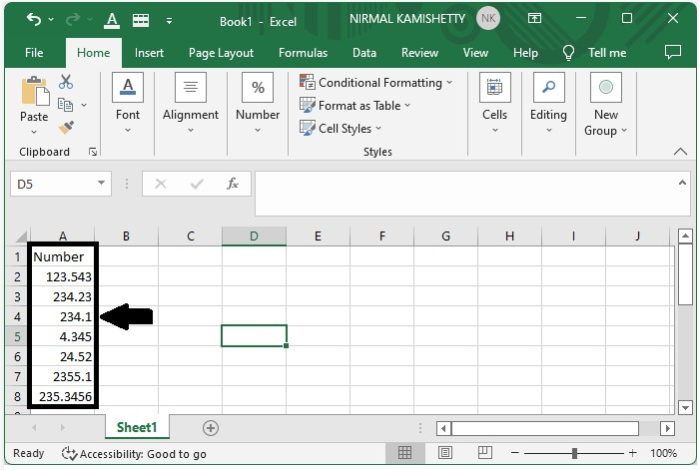
Now select the whole data, right-click on the data, and click on the format cells option from the popped-up menu box. A new pop-up window will appear as shown in the below image.
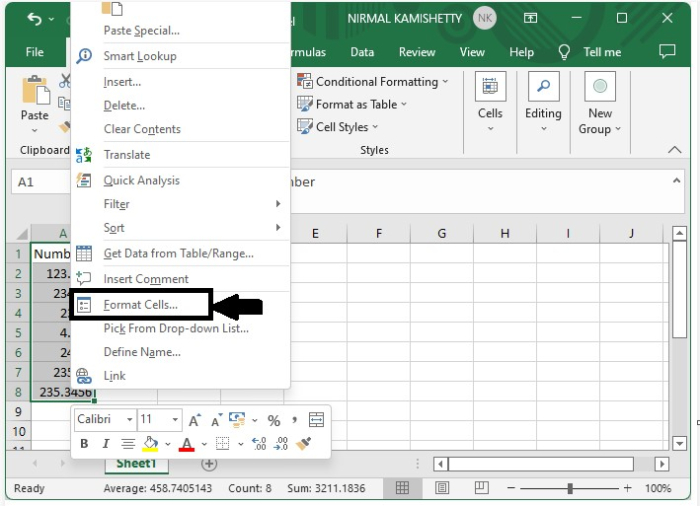
Step 2
In the popped-up menu, select the custom option and enter 0.?????? in the type text box before clicking OK.
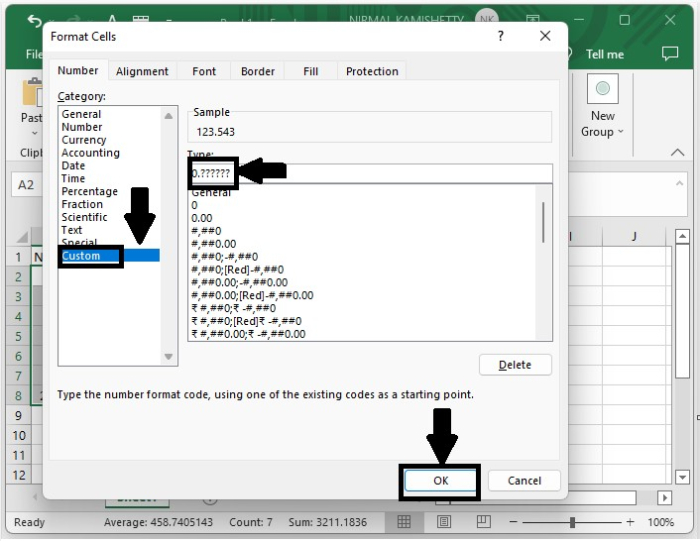
When we click on OK, we can see that the pop-up will be closed and the data will be arranged based on the decimal point, as shown in the below image.
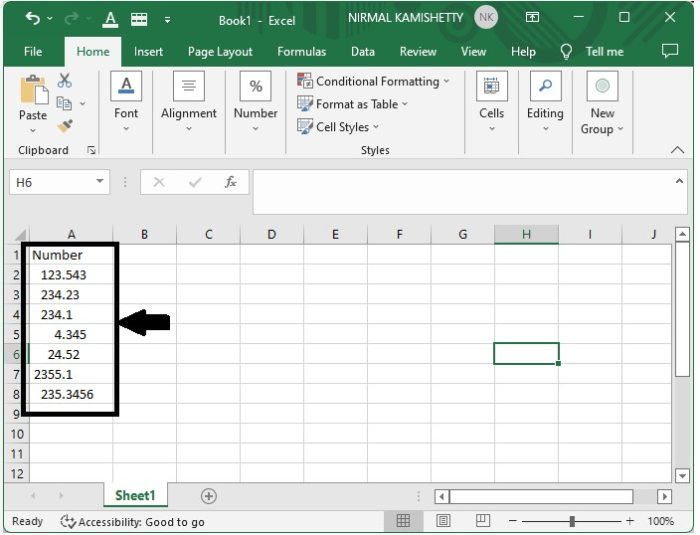
When we enter "0.??????" in the type: text box, the "?" represents that any number can come after the decimal point, and if our list has any integers without any decimal point, then a decimal point will be added after the number and nothing will be displayed after the decimal point.
Conclusion
In this tutorial, we used a simple example to demonstrate how you can align the column of decimal point numbers by decimal point in Excel to highlight a particular set of data.

1K+ Views
